
A set of file manager actions that enhance your workflow. Useful right-click options to simplify common tasks across GNOME, KDE, Xfce, and more.

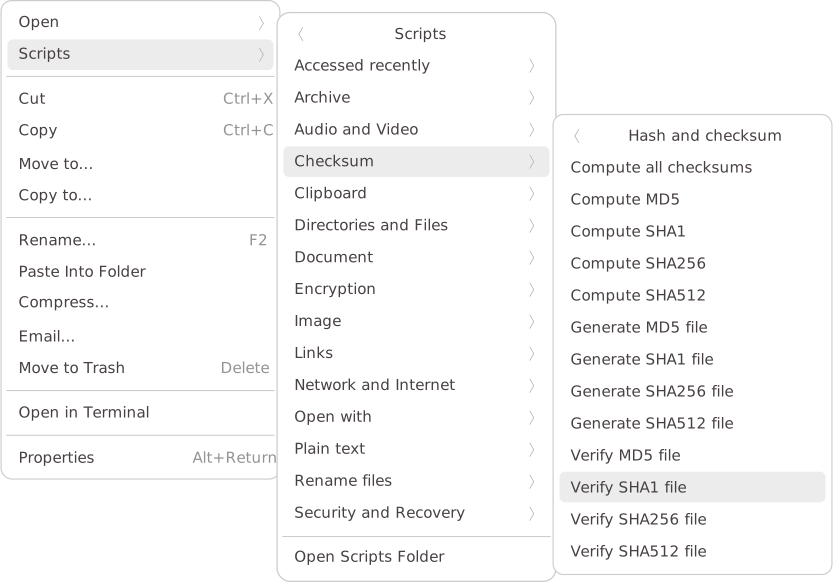

You can use either curl or wget. Choose one of the following commands and run it in your terminal:
bash -c "$(curl -fsSL https://cfgnunes.github.io/nautilus-scripts/install.sh)"bash -c "$(wget -qO- https://cfgnunes.github.io/nautilus-scripts/install.sh)"After cloning this repository, run the following command:
bash install.sh- Parallel task execution: Processes multiple files simultaneously. Very fast!
- Multi-language support: Automatically detects the system language and displays messages in the appropriate language.
- Progress dialog: Displays a progress dialog and allows interruption of tasks at any time.
- Dependency management: Prompts users to install any missing dependencies.
- Status notifications: Notifies users of dependency errors and types.
- Keyboard accelerators: Provides keyboard shortcuts for some scripts.
- Easy access to recent scripts: Includes a menu, Accessed recently, to quickly access recently used scripts.
- Category-based installation: The installer allows you to choose which script categories you want to install, so there's no need to install everything.
- File manager compatibility: Designed for major file managers like GNOME Files (Nautilus), Nemo, Caja, Dolphin, and Thunar.
- Distro compatibility: Works on major GNU/Linux distributions, such as Debian, Ubuntu, Fedora, and Arch Linux.
| Key | Action |
|---|---|
| F4 | Terminal |
| Shift + F4 | Terminal (synced panes) |
| F7 | Code editor |
| F12 | Disk usage analyzer |
| Ctrl + E | Extract here |
| Ctrl + Alt + G | Compress to 'tar.gz' |
| Ctrl + Alt + S | Compress to 'tar.zst' |
| Ctrl + Alt + X | Compress to 'tar.xz' |
| Ctrl + Alt + Z | Compress to 'zip' |
| Ctrl + Alt + I | Show file information |
| Ctrl + Alt + M | Show file metadata |
| Ctrl + Alt + 0 | Find empty files |
| Ctrl + Alt + J | Find junk files |
| Ctrl + Alt + U | Find duplicate files |
| Ctrl + Alt + H | List hidden files |
| Ctrl + Alt + P | List permissions and owners |
| Ctrl + Alt + B | List largest files |
| Ctrl + Alt + R | List recent files |
| Ctrl + Alt + W | Text: List issues |
| Ctrl + Alt + C | Copy file names |
| Ctrl + Alt + V | Paste clipboard contents |
| Ctrl + Shift + V | Paste as symbolic link |
| Ctrl + Shift + B | Create backup (via Rsync) |
| Ctrl + Shift + C | Compare items |
| Ctrl + Shift + O | Open item location |
| Ctrl + Shift + H | Compute all checksums |
| Ctrl + Shift + E | Find empty directories |
| Ctrl + Shift + P | Rename: Remove suffixes |
| Ctrl + Shift + G | Git: Clone URLs |
| Ctrl + Shift + R | Git: Reset and pull |
| Ctrl + Shift + X | URL: Download file |
| Shift + Alt + V | Paste as hard link |
| File manager | Environment | Menu integration | Application shortcuts | Keyboard accelerators | Menu "Accessed recently" |
|---|---|---|---|---|---|
| GNOME Files (Nautilus) | GNOME | 🟢 | 🟢 | 🟢 | 🟢 |
| Nemo | Cinnamon | 🟢 | 🟢 | 🟢 | 🟢 |
| Caja | MATE | 🟢 | 🟢 | 🟢 | 🟢 |
| Thunar | Xfce | 🟢 | 🟢 | 🟢 | 🔴 |
| Dolphin | KDE Plasma | 🟢 | 🟢 | 🔴 | 🔴 |
| PCManFM-Qt | LXQt | 🟢 | 🟢 | 🔴 | 🔴 |
| PCManFM | LXDE | 🟢 | 🟢 | 🔴 | 🔴 |
For very large selections (e.g., 10,000 input files), use batch mode: place all the input files in a folder whose name contains the word batch, then run the action on that folder. The scripts will process the files individually, avoiding the "argument list too long" error.